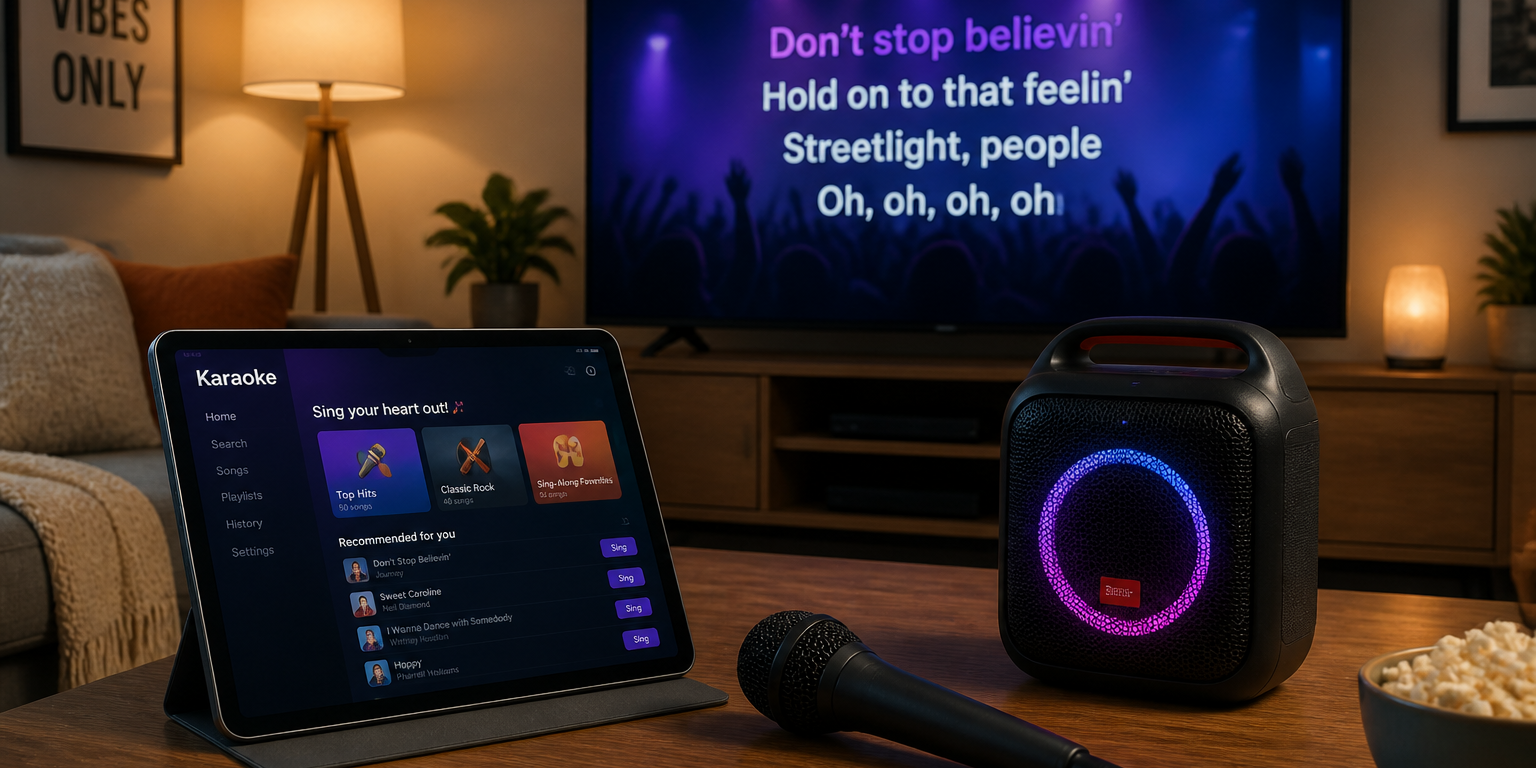
Getting karaoke on your TV at home is more straightforward than you might expect, and you don’t necessarily need to own a dedicated karaoke machine to do it.
This guide covers three practical ways to run a karaoke machine through your TV: using a karaoke app such as KaraFun directly on a smart TV or streaming device, hiring a complete karaoke machine that connects to your TV via HDMI, or connecting a laptop to your TV and running karaoke software or YouTube through that. Each option suits a different starting point depending on the equipment you already own.
For each approach, you’ll find a simple equipment list and straightforward setup steps written for anyone — not just the technically minded. Sound gets its own attention too, because getting lyrics on screen is only half the job.
At a Glance: 3 Ways to Get Karaoke Through Your TV
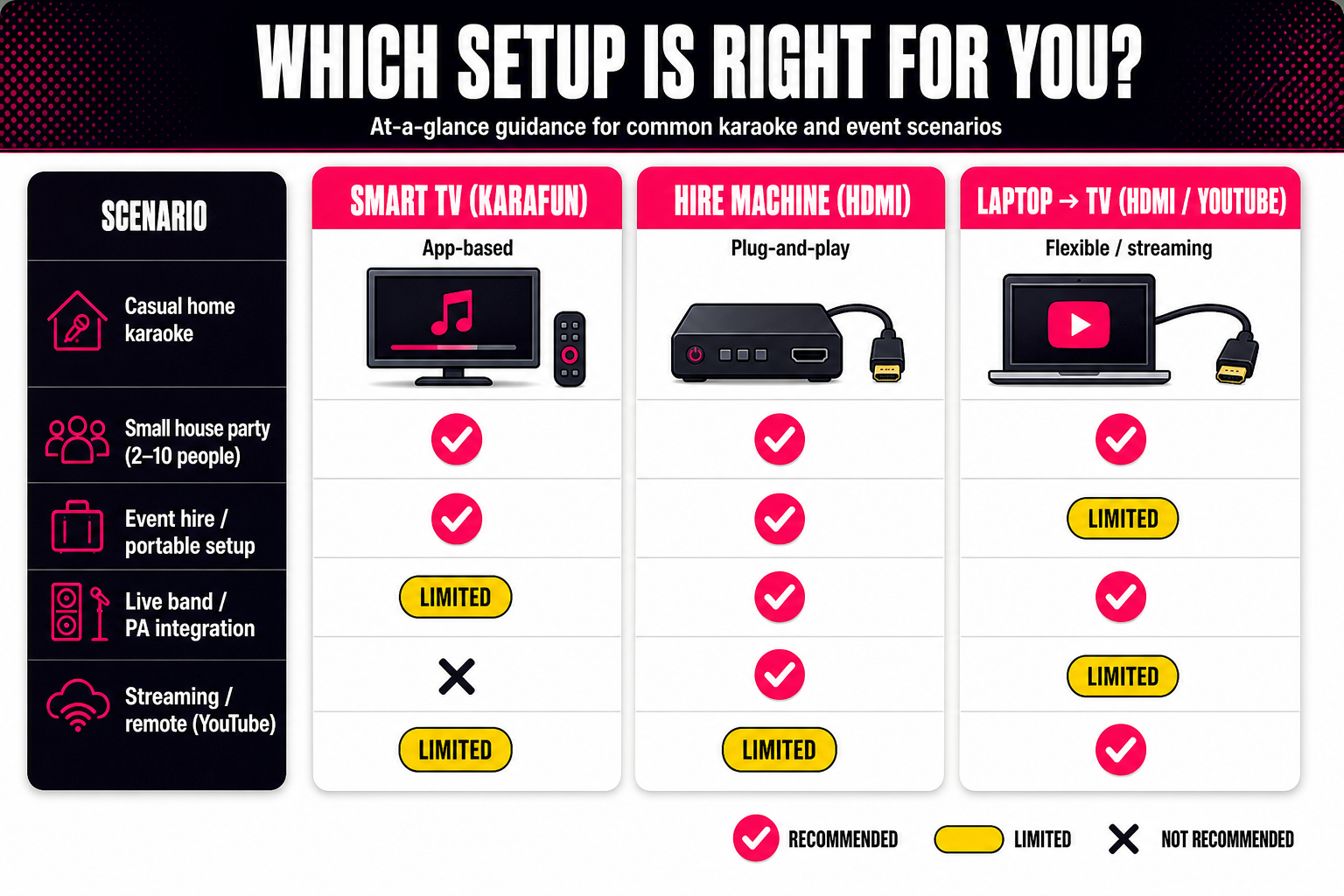
- Option 1 — Smart TV + KaraFun: Best if you already own microphones and speakers. Install the KaraFun app on your smart TV or streaming device and you’re ready to go. For occasional home use, it’s straightforward and good value.
- Option 2 — Hire a complete karaoke machine: Best for parties and convenience. The machine connects to your TV via HDMI and comes with microphones and speakers included. Minimal setup, reliable sound.
- Option 3 — Laptop connected to TV: Best if you don’t have a smart TV. Connect via HDMI and run KaraFun or find tracks on YouTube. Flexible and inexpensive.
Why Use Your TV for Karaoke?
A TV makes an excellent karaoke display — the screen is large enough for everyone in the room to follow the lyrics, and most modern televisions produce a clear, bright picture. Getting the words on screen is the easy part. The bigger challenge is usually sound. Built-in TV speakers aren’t designed for a karaoke party, so pairing your setup with a soundbar or external speakers will make a noticeable difference.
Option 1: Karaoke Through a Smart TV Using KaraFun
If you have a smart TV or a streaming device — Apple TV, Android/Google TV or Amazon Fire TV — this is often the quickest route to getting a karaoke machine through your TV. KaraFun offers dedicated apps for all three of these platforms, and where your TV has a built-in browser, the KaraFun web player may also be worth trying.
KaraFun is one of the stronger options for home karaoke. It has a large, regularly updated song catalogue, it’s easy to navigate, and you don’t need to understand professional software to get started. If you already own microphones and decent speakers, this setup offers good value for occasional use. Check the KaraFun website for current subscription pricing, as plans can change.
What You’ll Need
- A smart TV or compatible streaming device (Apple TV, Android/Google TV or Amazon Fire TV)
- Microphone(s)
- External speakers or a soundbar (strongly recommended)
How to Set It Up
- Open your TV’s app store and search for KaraFun, or navigate to the KaraFun web player through your TV’s browser.
- Sign in or start a trial subscription.
- Browse the song library and queue up your first track.
- Connect your microphones and external audio before guests arrive.
- Set your TV’s audio output to your external speakers rather than the built-in ones.
Getting the Sound Right
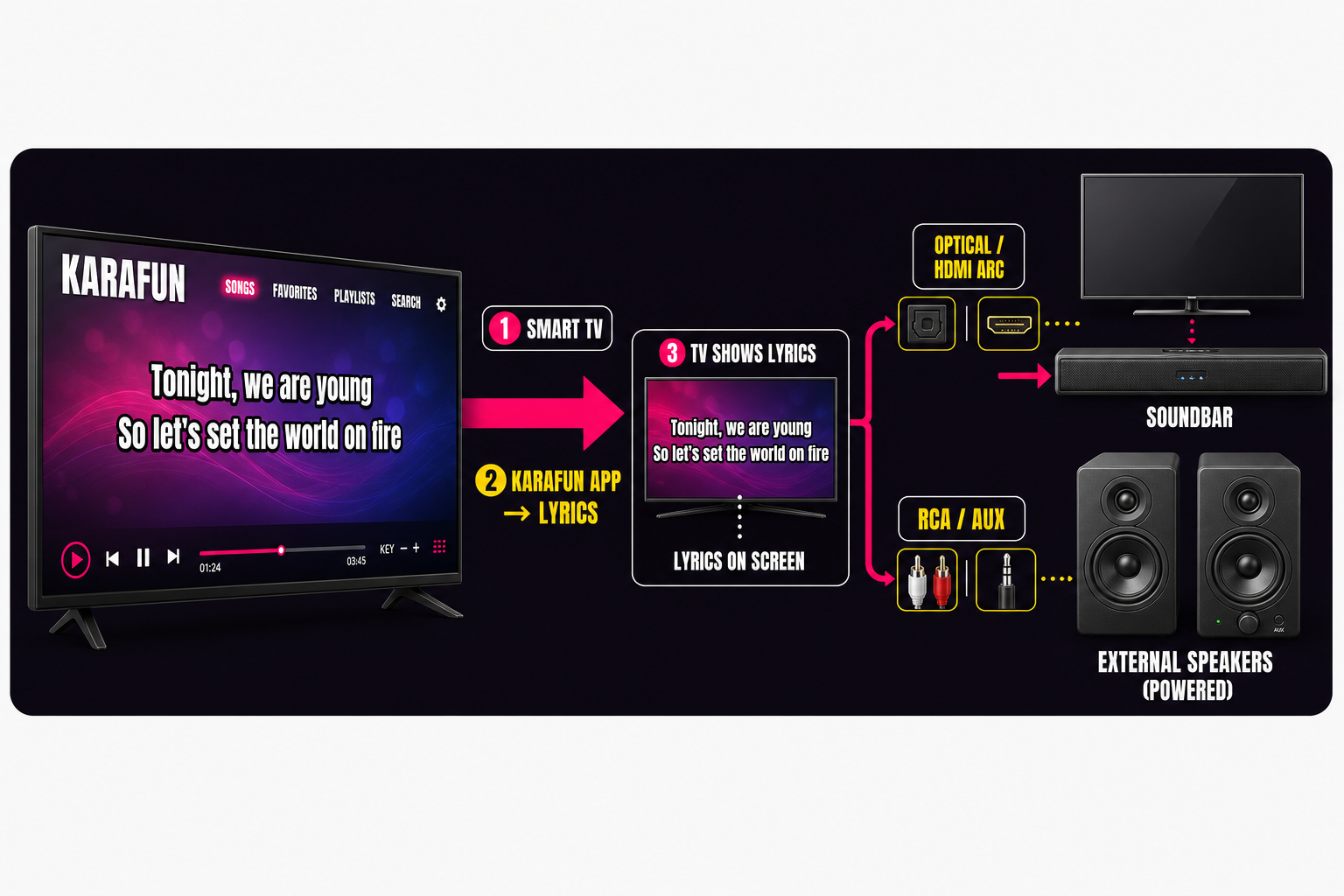
Most modern TVs offer at least one audio output for connecting external speakers. An optical output sends digital audio to a soundbar or amplifier via a single cable. RCA outputs — the red and white sockets — are the older analogue equivalent. If your speakers only accept one type and your TV offers the other, inexpensive adapters are widely available online.
A soundbar connected via HDMI ARC is usually the simplest option if your TV supports it. Whatever you use, do a quick sound check before guests arrive and confirm the TV’s internal speakers are muted to avoid doubling up.
Option 2: Hire a Karaoke Machine That Connects to Your TV via HDMI
For anyone hosting a party who doesn’t want to source and connect all the individual components themselves, hiring a complete system is by far the simplest approach. Our karaoke machine hire packages include everything you need, ready to use.
What’s Included in a Hire Package
- Karaoke system
- Microphones
- Speakers
- All necessary cabling
- HDMI output for connecting to your TV
Connecting to Your TV: Three Steps
- Unpack the system and position the speakers.
- Connect the HDMI cable from the karaoke machine to your TV.
- Switch on, test the microphones and adjust the volume.
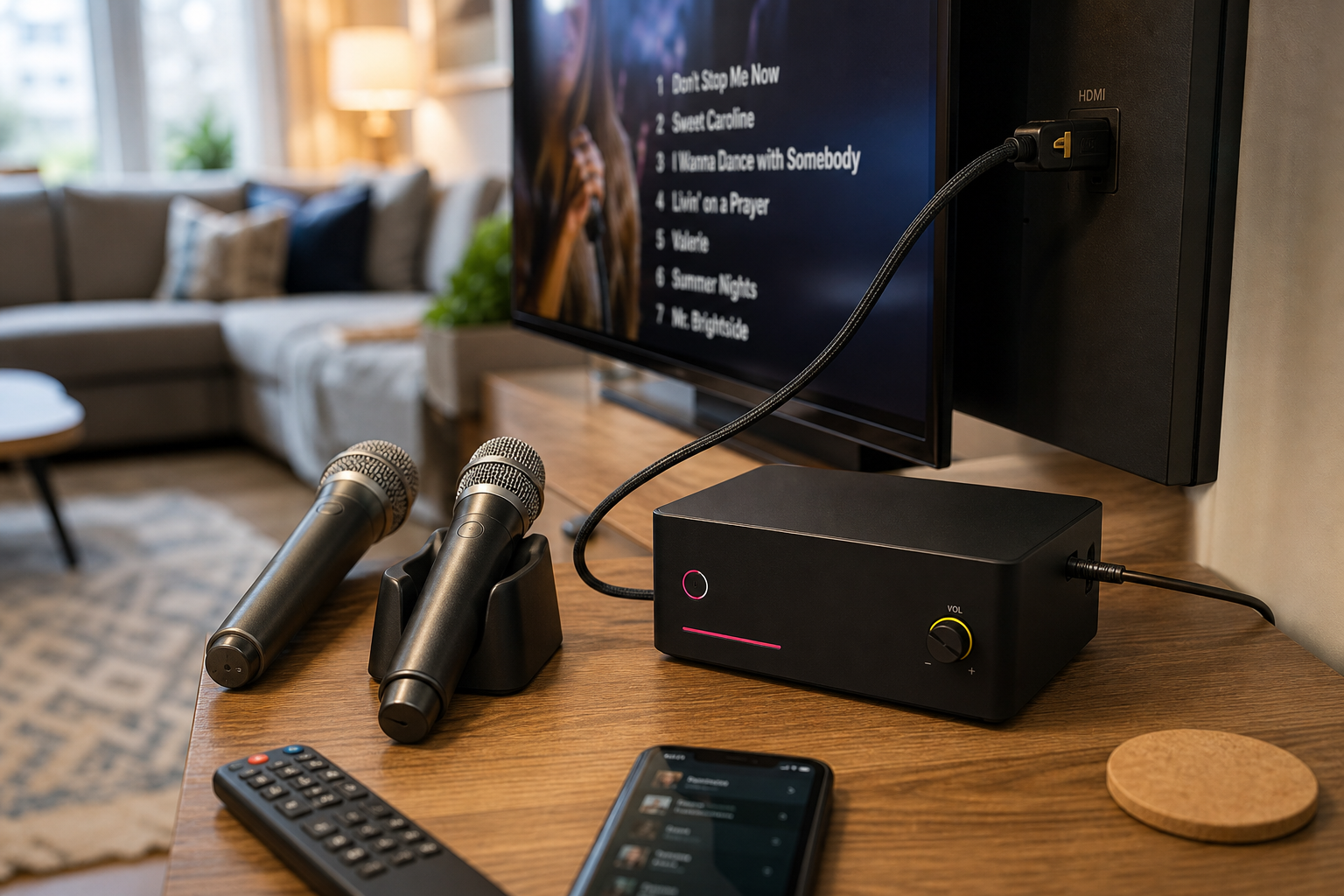
The machine handles all the karaoke functionality — microphones, speakers and system are set up to work together — while the TV simply acts as a larger screen for the lyrics display. There’s no guesswork about whether your speakers will work with your TV’s audio outputs, or whether your microphones will be loud enough. Everything is designed to function as a complete unit.
If you’re planning a party and want a great-sounding setup without the hassle of piecing things together yourself, check availability and get a quote on our hire page.
Option 3: Connect a Laptop to Your TV for Karaoke
No smart TV? No problem. Connecting a laptop to your TV via HDMI is a reliable, inexpensive way to get karaoke on the big screen. For casual or occasional use it’s a perfectly good solution — especially if you already own microphones or a small PA system.
What You’ll Need
- Laptop with an HDMI port (or a USB-C/Mini DisplayPort adapter)
- TV with an available HDMI input
- Microphones and external speakers (or TV speakers for very casual use)
How to Set It Up
- Connect the HDMI cable from your laptop to your TV.
- On Windows, press Windows key + P and select your preferred display mode. On macOS, go to System Settings > Displays (called System Preferences on older versions of macOS) and set the TV as a second or extended display.
- Open KaraFun or navigate to YouTube in your browser.
- Move the player window to the TV display and go full screen.
- In your laptop’s sound settings, select your preferred audio output — external speakers or an audio interface rather than the laptop’s built-in speakers.
- Do a quick sound check and mute the laptop speakers to avoid feedback.
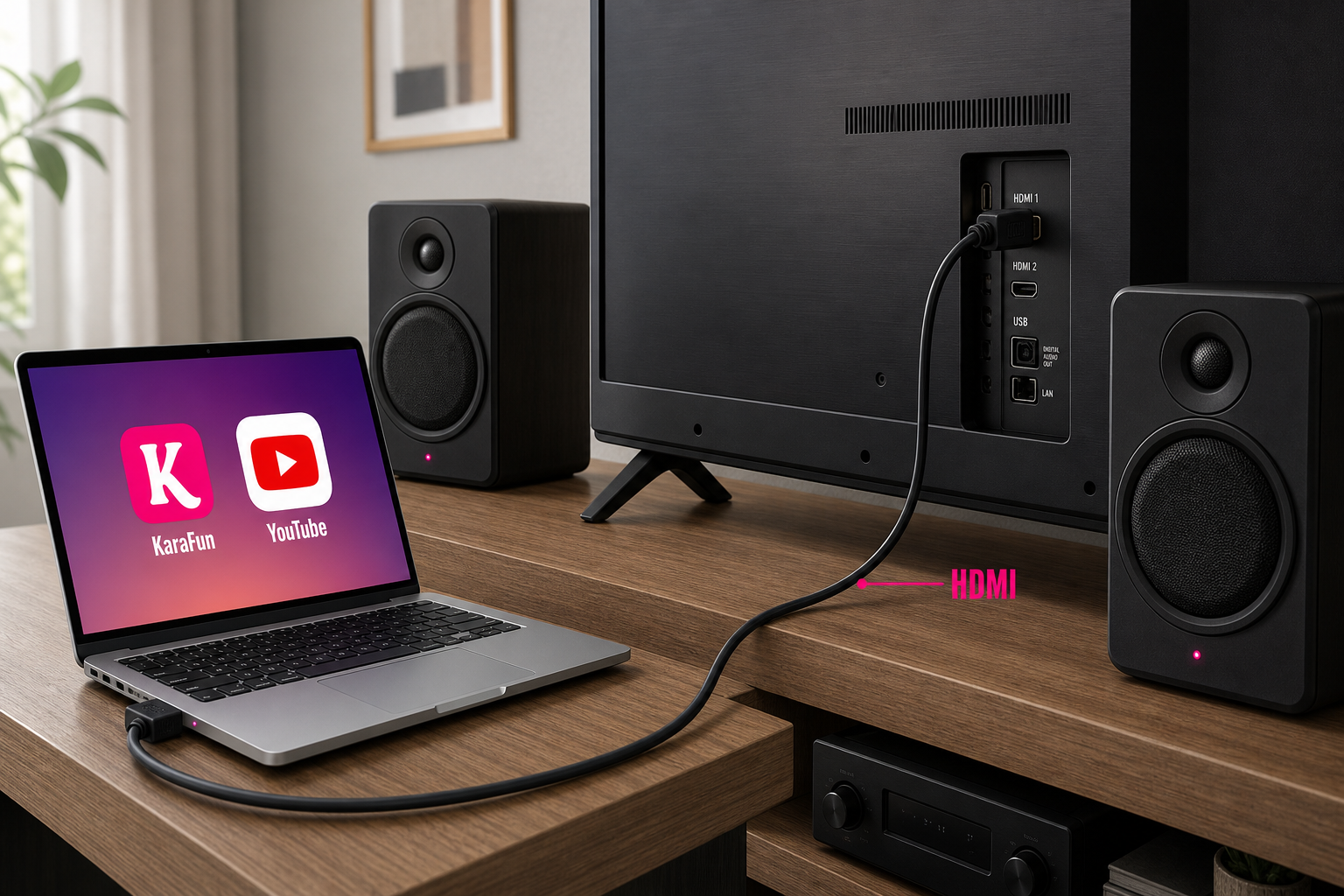
Using YouTube as a Fallback
YouTube has a large catalogue of karaoke tracks and costs nothing. The trade-off is inconsistent quality — some tracks are excellent, others have poor timing or inaccurate lyrics. It works fine for a relaxed evening but isn’t always reliable for a full party playlist. KaraFun gives a more consistent experience if you want a proper song library and dependable lyrics display.
For audio, even a modest set of powered speakers connected to your laptop’s headphone jack will sound noticeably better than relying on the TV’s built-in speakers.
Common Connection Issues and Simple Fixes
A quick sound check before guests arrive solves most problems. If something still isn’t working, run through these fixes in order.
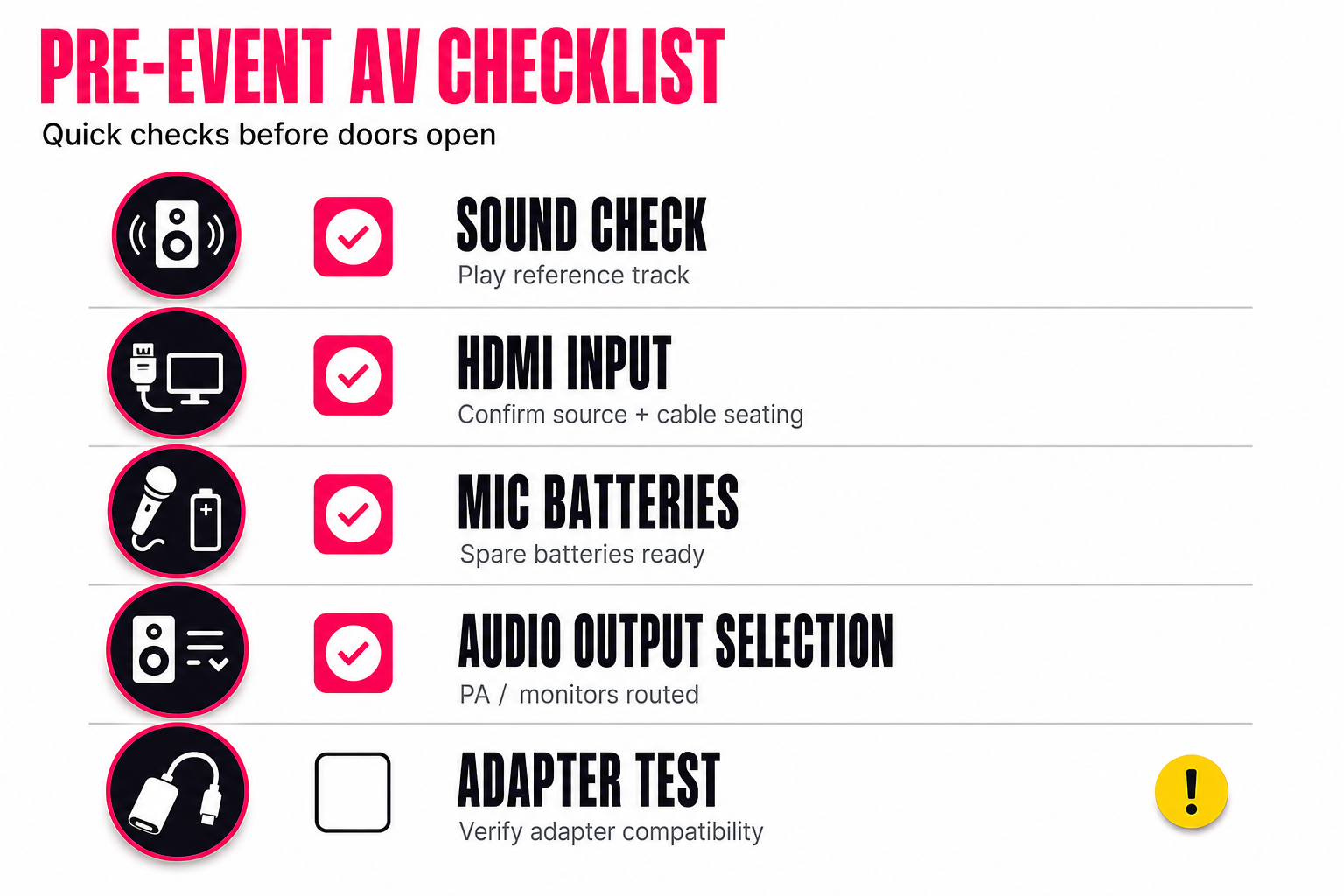
No Sound from the TV
- Check the TV volume isn’t muted or too low.
- Confirm the TV’s audio output is set to the correct source (internal speakers vs. soundbar/optical).
- Re-seat the HDMI cable at both ends — a loose connection often causes audio to drop.
No Lyrics Showing on Screen
- Make sure the TV is on the correct HDMI input channel.
- Put the app or browser window into full screen on the TV display.
- If using KaraFun, confirm you’re logged in and your subscription is active.
Microphone Problems
- Replace or recharge batteries first — it’s the most common cause of mic dropouts.
- For wireless mics, re-pair the mic to the receiver.
- Check that mic volume levels on the machine or mixer aren’t turned down.
Adapter or Cable Faults
- Try a different HDMI port on the TV.
- If using an optical-to-analogue adapter, test it with another device to confirm it’s working.
- Cheap adapters are a frequent culprit — a quality replacement often resolves the issue quickly.
Which Option Is Right for You?
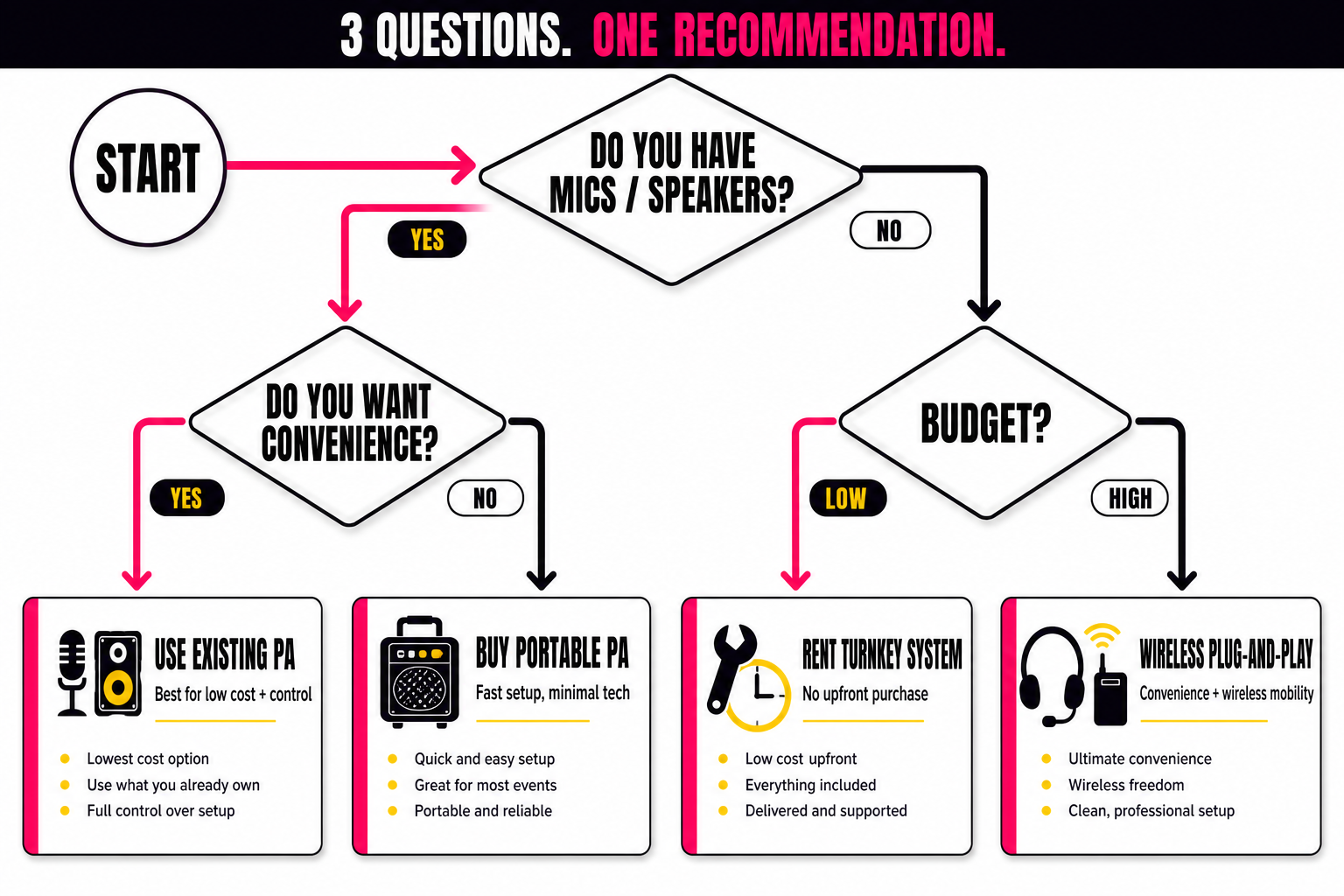
Not sure which approach suits you best? Here’s a quick breakdown.
- Already own microphones and decent speakers? Go with Option 1 (smart TV + KaraFun). It’s the most cost-effective route for occasional home karaoke — no new equipment needed, just add a subscription.
- Hosting a party and want great sound with minimal setup? Go with Option 2 (hire a karaoke machine). A hired system arrives ready to go, with matched microphones and speakers. Hire a karaoke machine and skip the DIY headache entirely.
- On a tight budget with a laptop to hand? Go with Option 3 (laptop to TV). It’s the most flexible, lowest-cost starting point and works well for small gatherings.
Still deciding? Ask yourself these four questions:
- How often will you use it? Occasionally → software; regularly or for events → hire.
- How many guests? Small group → laptop or smart TV; bigger party → hire.
- How important is sound quality? Casual → any option works; party-level → hire.
- How much setup are you willing to do? Minimal → hire; happy to tinker → smart TV or laptop.
There’s no single right way to run a karaoke machine through your TV — the best option depends on your equipment and how much sound quality matters to you. Ready for a hassle-free setup? Explore karaoke machine hire or contact The Karaoke Company with any questions.